The public package currently supports macOS Apple Silicon. Packages for other operating systems are being prepared.
View the full AI starter prompt
Read TITAN-START-HERE.md in this folder and AI-END-TO-END-TEST.md in the SDK, then help me create a projectroom application. First confirm the app and UI/server languages and guide me through projectroom sign-in. If an earlier creation record exists, ask whether to restore it instead of creating a duplicate. Request my approval separately for creation, restoration and deployment, then continue through build, deployment and verification within the approved scope.
One command for the next update
titan updateinstalls the latest SDK. To check for a new version only, use titan update --check.
Updates the CLI, execution tools and guides without signing in. Application code and login state are preserved. Use the respective IDE's update process for plugins.
The IDE's embedded CLI can also use titan update --checkto compare public CLI versions. Check plugin updates in the IDE itself.
For older installations without this command, run the installer above once again. If the terminal cannot find titan, run ~/.local/share/titan/bin/titan update.
02 / IDE + PLUGIN
Add Titan to your familiar tools.
Plugins include development execution tools. This is a separate starting path from the AI-only SDK.
The current installers are distributed separately. Use the supplied IntelliJ ZIP or VS Code VSIX. These instructions do not use Marketplace search.
IJ
IntelliJ IDEA
2026.2 or later · Windows / macOS
.zip
Install plugin
In Settings → Plugins → gear icon → Install Plugin from Disk…, select the supplied ZIP.
Restart the IDE
Restart and check for the Tools → Titan menu.
Sign in to projectroom
Start browser authentication from Open Titan Application. After signing in, check for updates through the supported plugin distribution channel.
Local builds require Docker. Check IDE language support for Java, Go and JavaScript too. Prepare Node and Go analysis libraries from the development dependencies menu.
VS
Visual Studio Code
1.95 or later · Windows / macOS
.vsix
Install extension
In Extensions → … → Install from VSIX…, select the supplied VSIX.
Reload window
Run Reload Window if needed, then check the Titan icon on the left.
Sign in and prepare your environment
Authenticate in the browser using Titan: Sign In, then run Titan: Prepare Development Environment. Install a new VSIX to update.
macOS: ⌘⇧P · Windows: Ctrl+Shift+P. Search for Titan: to see available commands. Open the application folder as a trusted workspace.
03 / YOUR FIRST APPLICATION
Follow one application from start to finish.
Create application → Create module → Build & deploy → Open application → Runtime logs. Select your IDE to see actual screens and navigation paths.
Actual plugin screens · 2026.10
STEP 01 / 05
Create an application
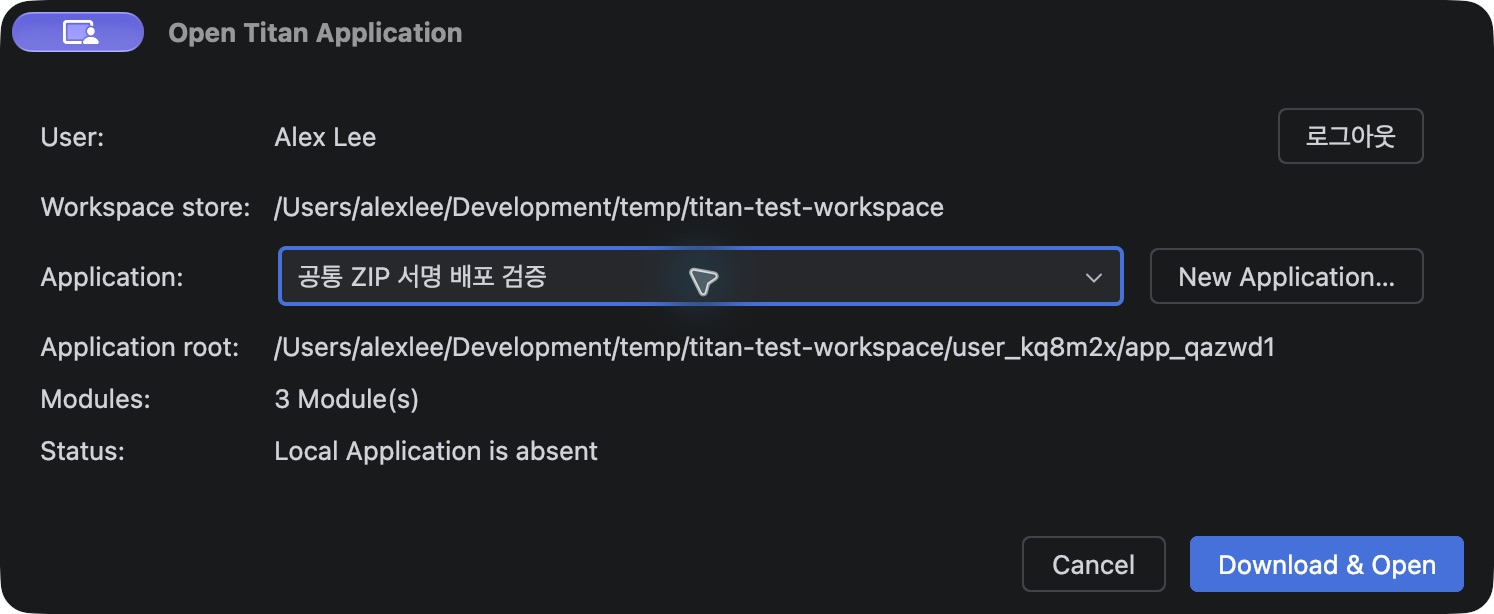
An application is the starting point. Download an existing application or create an empty one.
Tools
Titan
Open Another Titan Application
New Application…
Sign in with your projectroom account in the browser and approve the connection.
In New Application…, enter a name, code and optional description, then choose Create Application.
Select an existing application to download it. You do not need to recreate it.
Expected result
A dedicated local workspace and development guide are prepared and opened in a new IDE window.
You can also start with Open Titan Application on the Welcome screen.
Example application screens. Account and application names vary by environment.Enlarge ↗
01 / 05 · IntelliJ IDEA
This tour explains usage. Step buttons do not create applications, build or deploy. Personal development, team STG and production deployments are separate steps.
04 / FIND YOUR TOOLS
Where can I find a feature?
What you want to do
IntelliJ IDEA
VS Code
Create / open applicationsCreate an empty application or open an existing one locally.
Tools → Titan → Open Another Titan Application → New Application…
Titan: Create New Application / Titan: Select and Open Application
Create modulesChoose UI, API or batch templates.
Tools → Titan → Application → New Module…
Titan: Create Module
Build & deployPrepare an executable personal development version.
KV / application filesView data and files stored by the application.
Titan Resources → Open KV / Application Files
Explorer → Titan · Application Name → KV / Application Files
ParameterManage settings for dev, stg and prd.
Titan Resources → Parameters
Titan: Parameters
Batch execution / schedulesRun once in development and manage schedules for STG and PRD.
Titan Resources → Batch Execution & Schedules
Titan: Batch Execution & Schedules
Members / merge requestsView application members and integrate changes.
Titan Resources → Members / Open Merge Requests
Explorer → Titan · Application Name → Members / Merge Requests
SMTP / SQL historyReview email connection settings and SQL execution history.
Titan Resources → SMTP Settings / SQL History
Titan: SMTP Settings / Titan: SQL History
Module inspectionReview differences between server registration, local code and Git, with suggested actions.
Tools → Titan → Application → Inspect Modules…
Titan: Inspect Modules
Application resources are in Titan Resources under Project / Explorer. Use each IDE's native Git views to review changes, commit and push.
05 / BUILD WITH A CONVERSATION
You describe it. Development follows.
These scenarios connect what you say with the work that follows. AI explains the plan. You review and approve at the right moments.
01
Start with an idea
“Let's create a new Titan application.”
AI + CLI
The AI confirms the app, name and workspace, guides projectroom sign-in, then shows the account and creation plan for approval.
↳Application workspace + AI development guide
You sign in directly in the browser. Application creation requires a separate approval.
02
Separate UI and server
“Let's use JavaScript for the UI and Java for the server.”
AI + CLI
Plan the / UI and /api server modules and prepare templates. Implement pages and SSR in the UI, and the APIs it calls in the server.
↳UI module + server module
Agree on features and data storage too. For example: “Create a user table in the connected database and store registrations there.”
03
Check the result
“Build it and tell me which URL to open.”
AI + CLI · Browser
Run tests and builds, confirm the target, then sign and deploy. Show the development URL and the actions to test.
↳Personal development version + test URL
Authenticate through Open development app in the web console or IntelliJ's open action. This is separate from merely invoking Lambda.
04
Save work to the repository
“Save today's work to the repository on a branch named with today's date.”
AI + CLI
Review changed files and prepare a personal branch with today's date. Show the commit scope, then commit and push after approval.
↳Personal branch commit + remote backup
Local build artifacts are separate from Git storage. Commit and push source to continue on another computer.
05
Integrate into the team's STG
“Integrate my work into the development server so the team can view it.”
Merge request + Web console
Prepare and review a merge request from the personal branch into stg. After merging, use STG build & deploy in the application's Deployments tab.
↳Shared STG deployment history
The CLI does not currently support PRs, merges or STG execution. Complete these in the merge request screen and web console; AI guides the process and review.
06
Promote a verified release
“Promote the version running in STG to production.”
Owner · Web console
Check completed STG releases and their deployment times. The application owner chooses a release and approves promotion.
↳Production promotion of the same verified versions
No rebuild. The production aliases point to the chosen STG release's function versions. Promotion currently runs in the web console.